![logo-primary-accent.png]](https://help.ecomap.tech/hs-fs/hubfs/logo-primary-accent.png?height=48&name=logo-primary-accent.png)
Intro to Tags
What is a tag?
a tag is a label or keyword that help both Admins and End Users enrich, identify and organize their data.
What is a taxonomy?
Taxonomy is a structured system of tags.
What kind of tags can I create?
There are no limitations on what kind of tagging system you can implement. Think about what would help you and your End Users find resources more efficiently that might not be captured in an asset's description.
Some examples of taxonomies:
- Business Stage (What stage business is this resource for?)
- Resource Cost (Helps delineate between paid and free resources)
- Locations (Group your assets by neighborhood)
- Industry Focus (Create collections for specific industries)
- Language (indicate resources that are provided in a language other than English)
How to Create Tags
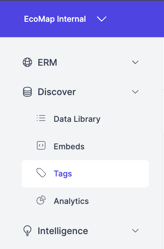
1. From your Discover Admin dashboard, click the Tags tab from the Left Nav Menu.
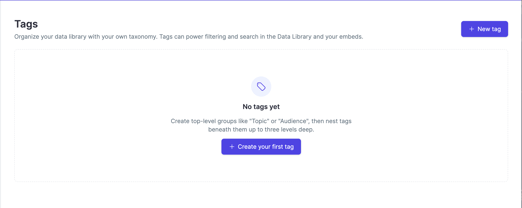
2. From the Tags tab, click "+ Create your first tag".
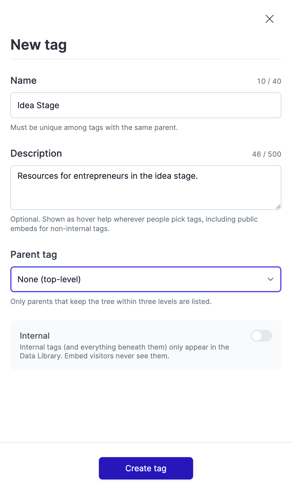
3. Complete the fields in the tag editor popup.
If you wish to make your new tag visible to admins only, make sure "Internal" is toggled on before you select "Create tag".
4. Once your tag has been created, you can edit or apply it to assets!
How to edit/delete/add child to a tag:
1. From the Tags dashboard, hover over the tag you wish to make changes to and click edit. The popup editor will open and you can proceed with your changes.
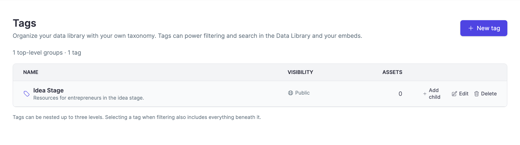
2. To delete a tag, hover over the tag and select Delete. This will remove the tag from assets and is not reversible, so delete with caution.
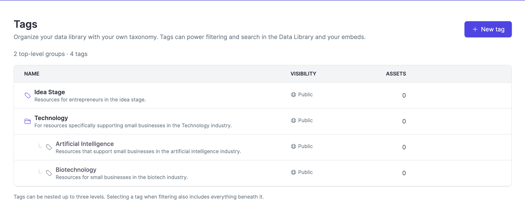
3. If you wish to create a tag that is a subset of an existing tag, select Add Child to create the new tag. Assets tagged with the child tag will by default inherit the parent tag as well.
How to apply tags to your data
1. Head over to your Data Library and use the search/filters or manually select the assets you wish to tag.
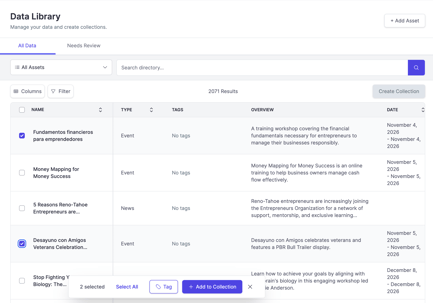
2. Once you have made your selections, click the "Tag" button.

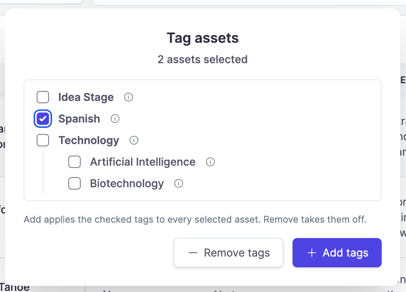
3. Select which tag you wish to apply from the popup menu and click "+ Add tags".