![logo-primary-accent.png]](https://help.ecomap.tech/hs-fs/hubfs/logo-primary-accent.png?height=48&name=logo-primary-accent.png)
You'll find referrals in two places in the ERM admin panel:
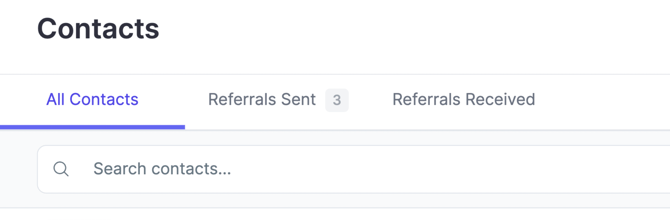
- Contacts dashboard: which now has two new tabs for tracking referrals:
-
- Referrals Sent: Track outbound referrals.
- Referrals Received: Track inbound referrals. This is where you review any referrals that have been sent to you.
- Contact's profile: where you send a referral and see every referral sent and received for that contact.
Before you start:
- Both teams must be in the same ecosystem. You can only refer contacts to other teams in your ecosystem.
- Consent settings are set by EcoMap. Your EcoMap contact turns on one or both consent options for your account (see Contact Consent below). If you want to change how consent works, contact support@ecomap.tech.
- The contact must already be in your Contacts list. Add them first if they aren't.
How to create and send a referral
- Go to Contacts and open the contact's profile.
- Click the Refer button on the top right of the profile:
- Choose the team you're referring the contact to.
- Select which attachments to send: notes, tasks and files. Only the items you select are shared.
- Confirm the contact's consent.
- Submit the referral!
Contact consent
Every referral needs the contact's consent. There are two ways to get it, and your account may have one or both turned on.
|
Option |
How it works |
When the receiving team gets the referral |
|
Consent checkbox (default) |
When you create the referral, you check a box confirming you already got the contact's consent separately, for example by phone, email or in person. |
Automatically |
|
Consent email |
An email goes out to the contact, who can allow or block the referral. |
When the contact allows it, or after 24 hours with no response. If the contact blocks it, the referral is not sent. |
The contact is agreeing to the referral between your team and the receiving team. Only check the consent box if you have actually asked the contact.
How to Accept a Referral
- Go to Contacts and open the Referrals Received tab.
- Find the referral. It shows who sent the contact referral and which attachments came with it.
- Click Accept.
Once you accept, the contact is added to your Contacts list with their basic information and the shared notes, tasks and files. If the contact is already on your team, the shared attachments are added to their existing record.
You can also filter your activity feed to show referral activity.
How to track outbound referrals
To see referrals you've sent and their status, go to Contacts and open the Referrals Set tab. To see every referral for one contact, sent and received, open that contact's profile.
Questions? Comments Concerns? Email support@ecomap.tech.